#+title: pi-coding-agent
#+author: Daniel Nouri
#+html: 
#+html: 
#+html: 
#+html: 
#+html: 
#+html: 
An Emacs frontend for the [[https://pi.dev][pi coding agent]].
#+html: 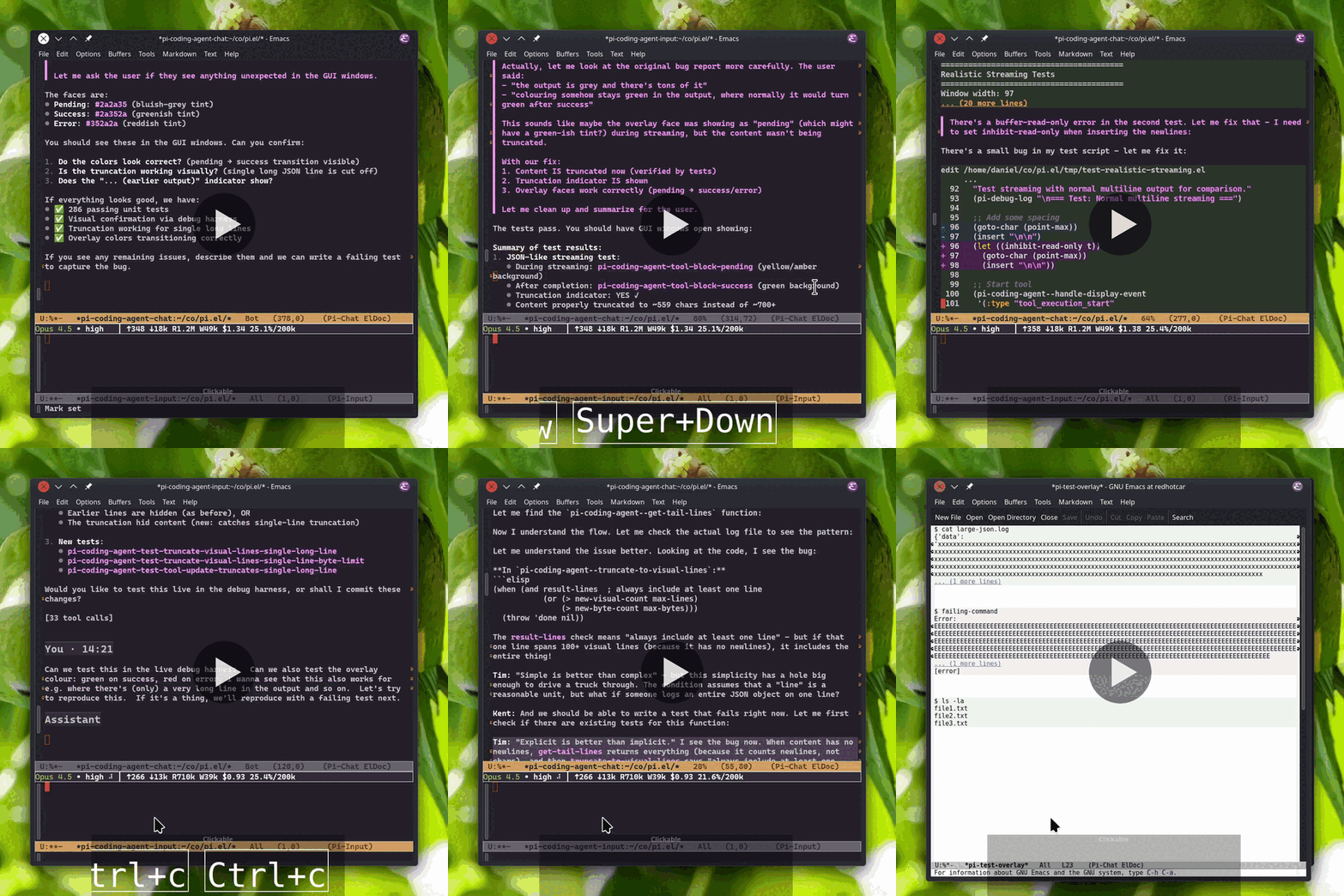
- Quick Start
If you already have a working Emacs with tree-sitter support, this is the
shortest path to a usable session:
#+begin_src bash
1. Install the pi CLI
npm install -g @mariozechner/pi-coding-agent
Or with mise
mise use -g npm:@mariozechner/pi-coding-agent
2. Authenticate the CLI
pi --login
#+end_src
If you prefer not to use OAuth, configure the provider API keys supported by
pi instead.
Then install the Emacs package from MELPA:
#+begin_src
M-x package-install RET pi-coding-agent RET
#+end_src
Then start a session:
#+begin_src
M-x pi-coding-agent
#+end_src
On first start, pi-coding-agent may prompt to install the tree-sitter grammars
needed for markdown rendering. That requires a C compiler (=gcc= or =cc=).
- Features
- Compose prompts in a full Emacs buffer: multi-line, copy/paste, macros, support for Vi bindings
- Chat history as a markdown buffer: copy, save, search, navigate
- Fork the conversation at any point in the chat buffer (f)
- Live streaming output as bash commands and tool operations run
- Tree-sitter-powered markdown rendering and syntax-highlighted code blocks
- Display-only wrapping for markdown pipe tables, with raw buffer text kept canonical
- Collapsible tool output with smart preview (expand with TAB)
- Click the model name or thinking level to change them
- Rich header line: activity phase, session name, extension status
- Input history with search (M-p/M-n, C-r)
- Magit-style transient menu for all commands
- Basic support for pi extensions and extension commands
- Requirements
- Emacs 29.1 or later (with tree-sitter support)
- [[https://pi.dev][pi coding agent]] 0.65.0 or later, installed and in PATH
- pi CLI authentication via =pi --login= or provider API keys
- A C compiler (=gcc= or =cc=) for installing tree-sitter grammars
- Installation
** MELPA
Install from [[https://melpa.org/#/pi-coding-agent][MELPA]]:
#+begin_src
M-x package-install RET pi-coding-agent RET
#+end_src
MELPA installs =transient=, =md-ts-mode=, and =markdown-table-wrap= automatically.
=pi-coding-agent= uses =md-ts-mode= only for its own chat buffers, so
installing or loading it does not change how unrelated =.md= files open.
If you want tree-sitter Markdown globally, configure =md-ts-mode=
separately.
Or with =use-package=:
#+begin_src emacs-lisp
(use-package pi-coding-agent
:ensure t
:init (defalias 'pi 'pi-coding-agent))
#+end_src
If you don’t have MELPA configured, add this to your init file:
#+begin_src emacs-lisp
(require 'package)
(add-to-list 'package-archives '(“melpa” . “https://melpa.org/packages/”) t)
(package-initialize)
#+end_src
** Manual installation
If you prefer a plain Git checkout, configure MELPA first (see above),
then evaluate this once to install the external dependencies:
#+begin_src emacs-lisp
(require 'package)
(setq package-install-upgrade-built-in t)
(package-initialize)
(unless package-archive-contents
(package-refresh-contents))
(package-install 'transient)
(package-install 'md-ts-mode)
(package-install 'markdown-table-wrap)
#+end_src
The =package-install-upgrade-built-in= setting upgrades Emacs’s bundled
=transient= when needed.
Then clone the repository and add it to your load path:
#+begin_src bash
git clone https://github.com/dnouri/pi-coding-agent ~/.emacs.d/site-lisp/pi-coding-agent
#+end_src
#+begin_src emacs-lisp
(require 'package)
(package-initialize)
(add-to-list 'load-path “~/.emacs.d/site-lisp/pi-coding-agent”)
(require 'pi-coding-agent)
#+end_src
Or with =use-package= (after installing =transient= and =md-ts-mode= as
above):
#+begin_src emacs-lisp
(use-package pi-coding-agent
:load-path “~/.emacs.d/site-lisp/pi-coding-agent”
:init (defalias 'pi 'pi-coding-agent))
#+end_src
** First start
Make sure the pi CLI is authenticated before expecting models to appear.
The simplest path is:
#+begin_src bash
pi --login
#+end_src
If you prefer not to use OAuth, configure the provider API keys supported by
pi instead. If =M-x pi-coding-agent= starts but says no model is available,
the CLI usually still needs authentication.
pi-coding-agent uses Emacs’s built-in tree-sitter support to render
markdown and highlight code blocks in the chat buffer. This requires
small grammar libraries to be compiled and installed — a one-time step
that needs a C compiler (=gcc= or =cc=).
On first session start, pi-coding-agent can prompt to install the two
grammars needed for markdown rendering. If you decline that essential
prompt, it appears again next time until the grammars are installed or
you change =pi-coding-agent-essential-grammar-action=. A separate
optional prompt offers additional grammars for syntax highlighting
inside code blocks (Python, JavaScript, Rust, etc.). Declining the
optional prompt is remembered and it appears again only if new grammar
recipes are added or you clear =pi-coding-agent-grammar-declined-set=.
To check which grammars are installed or install them later:
#+begin_src
M-x pi-coding-agent-install-grammars
#+end_src
If you manage tree-sitter grammars outside of Emacs (e.g. via a system
package manager), set =pi-coding-agent-essential-grammar-action= to
=warn= to suppress the essential grammar prompt. The optional grammar
prompt can be dismissed once and will not reappear.
- Usage
Start a session with =M-x pi-coding-agent=. This opens two windows:
- Chat buffer (top): Shows conversation history with rendered markdown
- Input buffer (bottom): Where you compose prompts
Type your prompt and press =C-c C-c= to send. Press =C-c C-p= for the full command menu.
If you define =(defalias 'pi 'pi-coding-agent)=, then =M-x pi= works as a
shortcut.
Running =M-x pi-coding-agent= again from a pi buffer restores missing panes.
If both chat and input are already visible in the current frame, the layout
stays unchanged and focus moves to the input window.
Use =M-x pi-coding-agent-toggle= to hide/show session windows in the
current frame.
For multiple sessions in the same directory, use
=C-u M-x pi-coding-agent= to create a named session.
- Key Bindings
| Key | Context | Description |
|---------------±--------±----------------------------------|
| =C-c C-c= | input | Send (queues if busy) |
| =C-c C-s= | input | Queue steering message (busy only)|
| =C-c C-k= | input | Abort streaming |
| =C-c C-p= | both | Open menu |
| =C-c C-r= | input | Resume session |
| =M-p= / =M-n= | input | History navigation |
| =C-r= | input | Incremental history search |
| =TAB= | input | Complete paths, @files, /commands |
| =@= | input | File reference (search) |
| =n= / =p= | chat | Navigate messages |
| =TAB= | chat | Toggle section |
| =S-TAB= | chat | Cycle all folds |
| =RET= | chat | Visit file at point (other window)|
| =f= | chat | Fork from point |
| =q= | chat | Quit session |
Press =C-c C-p= to access the full menu with model selection, thinking level,
session management (new, resume, fork, export), statistics, and custom commands.
- Tips & Tricks
** ✏️ Composing Prompts
The input buffer is a full Emacs buffer, one of the main advantages over
terminal interfaces. Take your time composing, write multi-line prompts,
paste from other buffers, use registers or kill-ring history. Your prompt
stays put while the AI responds above.
Slash commands (=/command=) work with completion: type =/= then =TAB= to
see available commands, including prompt templates from =~/.pi/agent/prompts/=
and skills from =~/.agents/skills/=.
** 📎 Editor Features
Several features match the TUI experience:
-
Path completion (Tab): Complete relative paths like =./=, =…/=, =~/=.
-
Message queuing: Submit messages while the agent is working:
- =C-c C-c= queues a /follow-up/ message, delivered after the agent finishes
- =C-c C-s= queues a /steering/ message, delivered after current tool
(interrupts remaining tools; only works when agent is busy)
** 🧩 Extension Support
pi-coding-agent has basic support for pi extensions. Extension commands
show up in slash completion and the transient menu, extension tools run
normally, and extensions can use notifications, confirm/select/input
prompts, prefill the input buffer, and show status text.
Rich TUI-specific extension UI is not supported in Emacs yet: custom
widgets, custom editor components, custom headers/footers, and other
component-based views are unavailable or fall back.
** 🔧 Tool Output
Tool output is collapsed by default to keep the chat readable, with a
preview of the first few lines visible. Press =TAB= on a tool block to
expand and see everything. File operations (read, write, edit) show full
syntax highlighting, and edit diffs highlight what changed. Long-running
commands stream output live so you can watch progress.
Press =RET= on a file-content line in a tool block to open the backing file
at the matching line number. This works for file tools (=read=, =write=,
=edit=) and custom tools that include =:path=. By default, the file opens in
the other window so you can keep the chat visible. Use =C-u RET= to open in
the same window instead.
** 📁 Folding Turns
Press =TAB= on a turn header (You/Assistant) to fold it, =TAB= again to
unfold. Use =S-TAB= to cycle visibility of all turns at once.
** 💾 Sessions
Each project directory gets its own session automatically. To run multiple
sessions in the same directory, use =C-u M-x pi-coding-agent= to create a
named session.
Resume (=C-c C-r=) and fork (=C-c C-p f=) present a selection menu:
pick from previous sessions or conversation messages to start from.
You can save the chat buffer like any other buffer to keep a Markdown
transcript on disk. Saving does not interrupt or replace the live pi session.
If you want a shareable export instead, use HTML export (=C-c C-p e= or
=/export=).
** 🌿 Forking and Context Management
When a conversation gets long, the AI’s context window fills up. The menu
(=C-c C-p=) offers tools to manage this:
-
Compact (=c=): Summarizes earlier conversation to free up context while
preserving key information. Use when context is filling up. If you don’t
compact manually, pi does it automatically when needed. -
Fork (=f=): Branches the conversation from any earlier turn.
Press =f= on any turn in the chat buffer, or use the menu to pick
from a list. -
Export (=e=): Saves the conversation as an HTML file for sharing or
archiving.
The context indicator in the status area shows current usage, warning
when getting full.
- Configuration
Example configuration with =use-package=:
#+begin_src emacs-lisp
(use-package pi-coding-agent
:ensure t
:init (defalias 'pi 'pi-coding-agent)
:custom
(pi-coding-agent-input-window-height 10) ; Height of input window
(pi-coding-agent-tool-preview-lines 10) ; Lines shown before collapsing tool output
(pi-coding-agent-bash-preview-lines 5) ; Lines shown for bash output
(pi-coding-agent-context-warning-threshold 70) ; Warn when context exceeds this %
(pi-coding-agent-context-error-threshold 90) ; Critical when context exceeds this %
(pi-coding-agent-visit-file-other-window t) ; RET opens file in other window (nil for same)
(pi-coding-agent-hot-tail-turn-count 3) ; Recent headed turns that re-wrap on resize
;; (pi-coding-agent-copy-raw-markdown t) ; Keep raw markdown on copy (default: strip hidden markup)
;; (pi-coding-agent-input-markdown-highlighting t) ; tree-sitter markdown highlighting in input buffer
)
#+end_src
Copying from the chat buffer strips hidden markdown markup by default —
=M-w= and =C-w= produce the visible text you see on screen. Set
=pi-coding-agent-copy-raw-markdown= to =t= for raw markdown, useful
when pasting into docs, Slack, or other markdown-aware contexts.
The input buffer uses plain =text-mode= by default. Set
=pi-coding-agent-input-markdown-highlighting= to =t= for tree-sitter
markdown highlighting (bold, code spans, fenced blocks) in new sessions.
** Markdown tables
Pipe tables in the chat buffer are beautified as a display-only view. The
underlying buffer text stays canonical markdown, so tree-sitter and search
still operate on the source table text rather than a rewritten pretty-print.
Copy commands also work on that underlying source, but they still honor the
existing chat copy contract: hidden markdown markup is stripped by default,
and =pi-coding-agent-copy-raw-markdown= preserves fully raw markdown.
Recent tables re-wrap automatically when the chat window width changes. Older
history stays frozen at its previous width to avoid expensive whole-buffer
redisplay on every resize. Tool blocks in older history also lose their
expand/collapse buttons and syntax highlighting, keeping long sessions snappy.
Customize =pi-coding-agent-hot-tail-turn-count= to choose how many recent
=You=/=Assistant= headed turns stay live.
A chat buffer has one active wrapped width at a time. That matches the normal
two-window UI, where each session shows one chat window and one input window.
If you deliberately show the same chat buffer in multiple windows with
different widths, one of those widths wins until the next refresh.
- Development
Most users can skip this section. It is for contributors and local
package development.
** Running tests locally
The shared integration contract has two lanes:
- a fast fake-pi lane for deterministic RPC-boundary checks
- a real pi lane for backend compatibility coverage
The default local integration target runs the fake lane first and the real
lane second, so it still needs Docker for the real lane. The GUI suite is
fully fake-backed and does not need Docker or a local pi install.
#+begin_src bash
Byte-compile, lint, and unit tests (fast, no Docker)
make check
Shared integration contract: fake first, then real (requires Docker for the real lane)
make test-integration
Fast integration lane against the fake-pi harness only (no Docker)
make test-integration-fake
Real pi lane only (requires Docker)
make test-integration-real
Run a single integration contract by selector
make test-integration-fake SELECTOR=rpc-smoke
make test-integration-real SELECTOR=steering-contract
Deterministic GUI tests (fake-backed, no Docker)
make test-gui
Run one GUI regression by selector
make test-gui SELECTOR=tool-overlay-bounded
All tests
make test-all
#+end_src
** Running fake-pi manually
Run the harness directly when debugging the subprocess contract itself.
These commands start an interactive JSONL peer on stdin/stdout.
#+begin_src bash
Basic prompt lifecycle scenario
uv run --script test/support/fake_pi.py --scenario prompt-lifecycle
Extension dialog scenario with a longer manual timeout
./test/support/fake_pi.py --scenario extension-confirm --extension-timeout-ms 10000
#+end_src
Scenario fixtures live under =test/fixtures/fake-pi/=.
** GUI tests with visible window
The GUI suite is deterministic and fake-backed. By default it auto-detects
whether to show a window or run headless.
#+begin_src bash
With a display available, runs with visible window
./test/run-gui-tests.sh
Run one visible regression directly
./test/run-gui-tests.sh pi-coding-agent-gui-test-scroll-auto-when-at-end
Force headless even with display available
./test/run-gui-tests.sh --headless
#+end_src
** CI setup
GitHub Actions runs on every push:
- =test-unit.yml= - Unit tests across Emacs 29.4, 30.1, and snapshot (31)
- =lint.yml= - Byte-compile, checkdoc, package-lint across Emacs 29.4, 30.1, and snapshot
- =test-integration.yml= - Split fake/real integration jobs; fake stays fast, real keeps Ollama compatibility coverage
- =test-gui.yml= - Deterministic fake-backed GUI tests with xvfb virtual framebuffer
Nightly builds keep real integration coverage against the pinned pi version
(from Makefile) and latest, while the fake-backed GUI suite runs once.
- Links
- [[https://danielnouri.org/notes/2025/12/30/an-emacs-mode-for-a-shitty-coding-agent/][Blog post]]: Background and motivation
- [[https://pi.dev][pi.dev]]: pi coding agent home page
- License
GPL-3.0-or-later. See [[file:LICENSE][LICENSE]].