fictrac
FicTrac: A webcam-based method for tracking spherical motion and generating fictive animal paths.
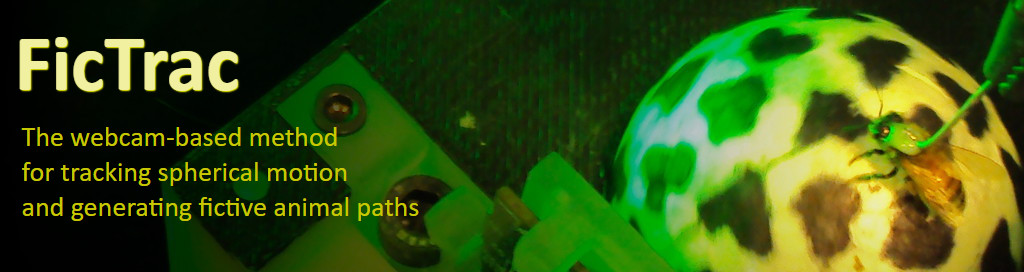
FicTrac is an open-source software library for reconstructing the fictive path of an animal walking on a patterned sphere. The software is fast, flexible, easy to use, and simplifies the setup of closed-loop tracking experiments.
FicTrac was originally developed by researchers at the Queensland Brain Institute at the University of Queensland, Australia for tracking honeybees and fruit flies during closed-loop tethered walking experiments, but it has since proved useful for tracking a wide range of animals with different movement speeds, track ball diameters and patterns, and stimuli.
On this page you’ll find information for:
- Getting started - including hardware requirements, and basic steps for installing, configuring, and running FicTrac.
- Research - including works to cite and links to the original FicTrac publication and preprint (pdf).
- Contributing - how to go about making your fixes, additions, and customisations available for other users.
- Re-use - licensing information, if you plan on using FicTrac or the source code.
You might also be interested in the following links:
- Demo video - Quick (30s) overview of what FicTrac does and how it works.
- FicTrac guide - Detailed description of FicTrac as well as instructions and recommendations, etc.
- Homepage - Contact details for the main author/developer, links, and further info.
- Forum - Subreddit for faqs, support, advice, discussions, etc.
- Mailing list - Subscribe to receive important announcements and updates.
Happy tracking!
Getting started
If you’re just setting up your lab, or wondering whether FicTrac is suitable for your setup, check the hardware requirements section below for the basic requirements.
If you already have an experimental enclosure with a camera, you can use FicTrac to either process recorded videos offline or to run live from the camera. Skip ahead to install, configure, and run FicTrac.
Hardware requirements
Very briefly, FicTrac imposes almost no special requirements on your experimental setup, other than that a pattern must be applied to the track ball. However, there are a number of tips that can help you get the best results from using FicTrac.
A typical FicTrac experimental setup might include at least the following equipment:
- Animal tether/harness - for keeping the animal stationary on the track ball
- Stimulus - sensory feedback for the animal
- Track ball support - structure to hold track ball in place whilst allowing free rotation
- Track ball - lightweight sphere that is rotated by the animal’s walking/turning motions. Surface pattern should ideally be high-contrast, non-repeating, non-reflective (not glossy), and contain around 10~50 variously sized shapes with a mixture of texture scales (i.e. some small sharp features, some blobs, etc).
- Video camera - for monitoring the track ball (and animal). Resolution is not important, and for vertebrates a USB webcam is likely sufficient. For faster moving insects, the camera should support frame rates >100 Hz. In all cases, the frame rate, exposure, and lens should be chosen to ensure the track ball pattern is well-exposed under all lighting/stimulus conditions and that there is no motion blur during the fastest expected movements. At least one half of one hemisphere of the track ball surface should be visible by the camera.
- PC/laptop - for running FicTrac software (and generating closed-loop stimuli). Processor should be somewhat recent (>2 GHz, multi-core). Operating system can be either Windows or Linux - FicTrac has been tested in Windows 10 and Ubuntu 18.04 & 20.04, although many other linux variants are also probably fine. A supported operating system can also be installed via virtual machine, in which case FicTrac can be run within any host operating system.
- Lighting - ambient lighting should be diffuse (no specular reflections from track ball surface) and bright enough to give good track ball surface exposure at chosen frame rate.
FicTrac imposes no requirements on the italicised items; how you design these is completely dependent on other factors.
Installation
The FicTrac source code can be built for both Windows and Linux (e.g. Ubuntu) operating systems, or you can build and run FicTrac from within the Windows Subsystem for Linux (WSL) or a virtual machine on any operating system.
Ubuntu 20.04 & Ubuntu 22.04
These instructions have been tested for Ubuntu 20.04 and 22.04 within Windows Subsystem for Linux (WSL2), but should also apply to bootable installs and virtual machines.- Clone the FicTrac repository into a new folder named
fictrac(Git should already be installed - if not, you can install it viasudo apt-get install gitor you can simply manually download and extract the repository)
git clone https://github.com/rjdmoore/fictrac.git
- Navigate to the
fictracfolder and run the install script to install dependencies and build FicTrac.
cd fictrac
./install_ubuntu.sh
Windows (Subsystem for Linux)
These instructions will install Ubuntu within the Windows Subsystem for Linux (WSL). You can then simply follow the steps for the relevant version of Ubuntu.- Install Ubuntu from the Microsoft Store
- Open the Start menu and search for “Store”
- Open Microsoft Store and search for “Ubuntu 22”
- Click “Get” to install Ubuntu in WSL.
- Open a Ubuntu terminal and follow the installation instructions for FicTrac for the relevant version of Ubuntu.
Windows 10
These instructions have been tested for Windows 10 (22H2).- Download and install MSYS2
- Download and install Cmake (Windows x64 installer)
- Clone the FicTrac repository into a new folder named
fictrac(if you do not have Git installed, you can download and install for Windows 64-bit from here or you can simply manually download and extract the repository)
git clone https://github.com/rjdmoore/fictrac.git
- In a Powershell terminal, navigate to the
fictracfolder and run the install script to install dependencies and build FicTrac.
cd fictrac
./install_windows.ps1
During installation, the script will prompt you for the MSYS2 installation path and then launch a MSYS2 terminal. The FicTrac dependencies should be installed here using the pacman utility. The install script will display a command which you can copy to the MSYS terminal to install the dependencies. Once the dependencies are installed, you must close the MSYS window to continue the FicTrac installation.
After installation, you may need to close and re-open your Powershell terminal in order to run FicTrac.
Alternate (old) installation via Vcpkg for Windows/Linux
These instructions have been tested for Windows 10, Ubuntu 18.04, and Ubuntu 20.04.- Download and install required build tools and dependencies:
- Windows only:
- Cmake build system (Windows win64-x64 Installer)
- If you don’t already have Visual Studio (C++ workflow) installed, you will need to install the Build Tools for Visual Studio.
- Linux only:
- Run the following from terminal to install necessary build tools and dependencies:
sudo apt-get install gcc g++ git cmake curl unzip tar yasm pkg-config libgtk2.0-dev libavformat-dev libavcodec-dev libavresample-dev libswscale-dev libopencv-dev - (Windows and Linux) Clone or download the Vcpkg repository and then follow the guide to install (make sure to perform the bootstrap and integration steps).
- Using Vcpkg, install remaining dependencies:
- Windows only:
[Windows] .\vcpkg install opencv[ffmpeg]:x64-windows nlopt:x64-windows boost-asio:x64-windows ffmpeg[x264]:x64-windows
[Linux] ./vcpkg install nlopt:x64-linux boost-asio:x64-linux
- Clone or download the FicTrac repository, then navigate to that folder, open a terminal, and create a build directory:
git clone https://github.com/rjdmoore/fictrac.git
cd fictrac
mkdir build
cd build
- Run Cmake to prepare the necessary build files for FicTrac. Here, we will need to provide the path to the Cmake toolchain file that was installed by Vcpkg (this path is printed to terminal when you run the Vcpkg system-wide integration step).
[Windows] cmake -A x64 -D CMAKE_TOOLCHAIN_FILE=C:\path\to\vcpkg\scripts\buildsystems\vcpkg.cmake ..
[Linux] cmake -D CMAKE_TOOLCHAIN_FILE=/path/to/vcpkg/scripts/buildsystems/vcpkg.cmake ..
- Finally, build and install FicTrac:
[Windows] cmake --build . --config Release -j 4
[Linux] cmake --build . --config Release -- -j 4
If everything went well, the executables for FicTrac and a configuration utility will be placed under the bin directory in the FicTrac project folder.
If you encounter issues during the build process, try simply re-executing the step that failed. If you still encounter the same problem, check the FicTrac forum to see if anyone else has encountered (and hopefully solved!) the same issue.
Remember to update (i.e. clone) and re-build FicTrac occasionally, as the program is still under development and fixes and improvements are being made continuously.
USB2/3 camera installation
If you are using an industrial USB2/3 camera and are receiving error messages when FicTrac tries to connect to your camera, you may need to tell FicTrac to use the SDK provided with your camera, rather than the generic OpenCV interface. The instructions for switching to the camera’s SDK are different for each manufacturer. Currently there is support for PGR (FLIR) USB2/3 cameras via the Flycapture/Spinnaker SDK and Basler USB3 cameras via the Pylon SDK.
Click on the appropriate SDK below to view details.
PGR (FLIR) Flycapture SDK
- Download and install the latest Flycapture SDK.
- When preparing the build files for FicTrac using Cmake, you will need to specify to use Flycapture using the switch
-D PGR_USB2=ONand depending on where you installed the SDK, you may also need to provide the SDK directory path using the switch-D PGR_DIR=.... For example, for a Windows installation you would replace step 3 above with (replacing <vcpkg_root> with the path to your vcpkg root directory):
cmake -A x64 -D CMAKE_TOOLCHAIN_FILE=<vcpkg root>/scripts/buildsystems/vcpkg.cmake -D PGR_USB2=ON -D PGR_DIR="C:\path\to\Flycapture" ..
- Follow the other build steps as normal.
Before running FicTrac, you may configure your camera (frame rate, resolution, etc) as desired using the SDK utilities.
PGR (FLIR) Spinnaker SDK
- Download and install the latest Spinnaker SDK.
- When preparing the build files for FicTrac using Cmake, you will need to specify to use Spinnaker using the switch
-D PGR_USB3=ONand depending on where you installed the SDK, you may also need to provide the SDK directory path using the switch-D PGR_DIR=.... For example, for a Windows installation you would replace step 3 above with (replacing <vcpkg_root> with the path to your vcpkg root directory):
cmake -A x64 -D CMAKE_TOOLCHAIN_FILE=<vcpkg root>/scripts/buildsystems/vcpkg.cmake -D PGR_USB3=ON -D PGR_DIR="C:\path\to\Spinnaker" ..
- Follow the other build steps as normal.
Before running FicTrac, you may configure your camera (frame rate, resolution, etc) as desired using the SDK utilities.
Basler Pylon SDK
- Download and install the latest Pylon SDK.
- When preparing the build files for FicTrac using Cmake, you will need to specify to use Pylon using the switch
-D BASLER_USB3=ONand depending on where you installed the SDK, you may also need to provide the SDK directory path using the switch-D BASLER_DIR=.... For example, for a Windows installation you would replace step 3 above with (replacing <vcpkg_root> with the path to your vcpkg root directory):
cmake -A x64 -D CMAKE_TOOLCHAIN_FILE=<vcpkg root>/scripts/buildsystems/vcpkg.cmake -D BASLER_USB3=ON -D BASLER_DIR="C:\path\to\Pylon" ..
- Follow the other build steps as normal.
Before running FicTrac, you may configure your camera (frame rate, resolution, etc) as desired using the SDK utilities.
Configuration
There are two necessary steps to configure FicTrac prior to running the program:
- You must provide a text file that contains important configuration parameters for your setup. At a minimum, this config file must define the parameters
src_fnandvfov, which define the image source (path to video file or camera index) and vertical field of view (in degrees) of your camera respectively. You will find an example config file (config.txt) in thesampledirectory. - You must run the interactive configuration program (configGui). This program will guide you through the configuration of the track ball region of interest within your input images and the transformation between the camera’s and animal’s frames of reference.
A more detailed guide on how to configure FicTrac for your setup and an explanation of all the configuration parameters can be found in the doc directory.
Running FicTrac
To configure FicTrac for the provided sample data, simply open a terminal in the FicTrac project folder and type:
cd sample
[Windows] ..\bin\Release\configGui.exe config.txt
[Linux] ../bin/configGui config.txt
The sample config file config.txt is already configured for the sample data, but you can step through the configuration process to check that everything looks ok.
Then, to run FicTrac, type:
[Windows] ..\bin\Release\fictrac.exe config.txt
[Linux] sudo ../bin/fictrac config.txt
FicTrac will usually generate two output files:
- Log file (*.log) - containing debugging information about FicTrac’s execution.
- Data file (*.dat) - containing output data. See data_header for information about output data.
The output data file can be used for offline processing. To use FicTrac within a closed-loop setup (to provide real-time feedback for stimuli), you should configure FicTrac to output data via a socket (IP address/port) in real-time. To do this, just set sock_port to a valid port number in the config file. There is an example Python script for receiving data via sockets in the scripts directory.
Note: For Windows installations, if the fictrac command returns immediately without printing anything to the terminal, try closing and reopening the terminal.
Note: If you encounter issues trying to generate output videos (i.e. save_raw or save_debug), you might try changing the default video codec via vid_codec - see config params for details. If you receive an error about a missing H264 library, you can download the necessary library (i.e. OpenCV 3.4.3 requires openh264-1.7.0-win64.dll) from the above link and place it in the bin folder under the FicTrac directory.
Research
If you use FicTrac as part of your research, please cite the original FicTrac publication:
RJD Moore, GJ Taylor, AC Paulk, T Pearson, B van Swinderen, MV Srinivasan (2014). “FicTrac: a visual method for tracking spherical motion and generating fictive animal paths”, Journal of Neuroscience Methods, Volume 225, 30th March 2014, Pages 106-119. [J. Neuroscience Methods link] [Preprint (pdf) link]
This publication contains technical details on how FicTrac works, performance analysis, results, and other discussion.
Contribution guidelines
If you have modified the FicTrac source code to fix issues, add functionality, or to better suit your setup, please consider making those additions available to other users!
To do so, just follow the standard Github fork and pull request workflow.
License
See the LICENSE file for more info.