NixOS System Configurations
This repository contains my NixOS system configurations. This repository
isn’t meant to be a turnkey solution to copying my setup or learning Nix,
so I want to apologize to anyone trying to look for something “easy”. I’ve
tried to use very simple Nix practices wherever possible, but if you wish
to copy from this, you’ll have to learn the basics of Nix, NixOS, etc.
I don’t claim to be an expert at Nix or NixOS, so there are certainly
improvements that could be made! Feel free to suggest them, but please don’t
be offended if I don’t integrate them, I value having my config work over
having it be optimal.
How I Work
I like to use macOS as the host OS and NixOS within a VM as my primary
development environment. I use the graphical applications on the host
(browser, calendars, mail app, iMessage, etc.) but I do almost everything
dev-related in the VM (editor, compilation, databases, etc.).
Inevitably I get asked why? I genuinely like the macOS application
ecosystem, and I’m pretty “locked in” to their various products such as
iMessage. I like the Apple hardware, and I particularly like that my hardware
always Just Works with excellent performance, battery life, and service.
However, I prefer the Linux environment for almost all my dev work. I find
that modern computers are plenty fast enough for the best of both worlds.
Here is what it ends up looking like:
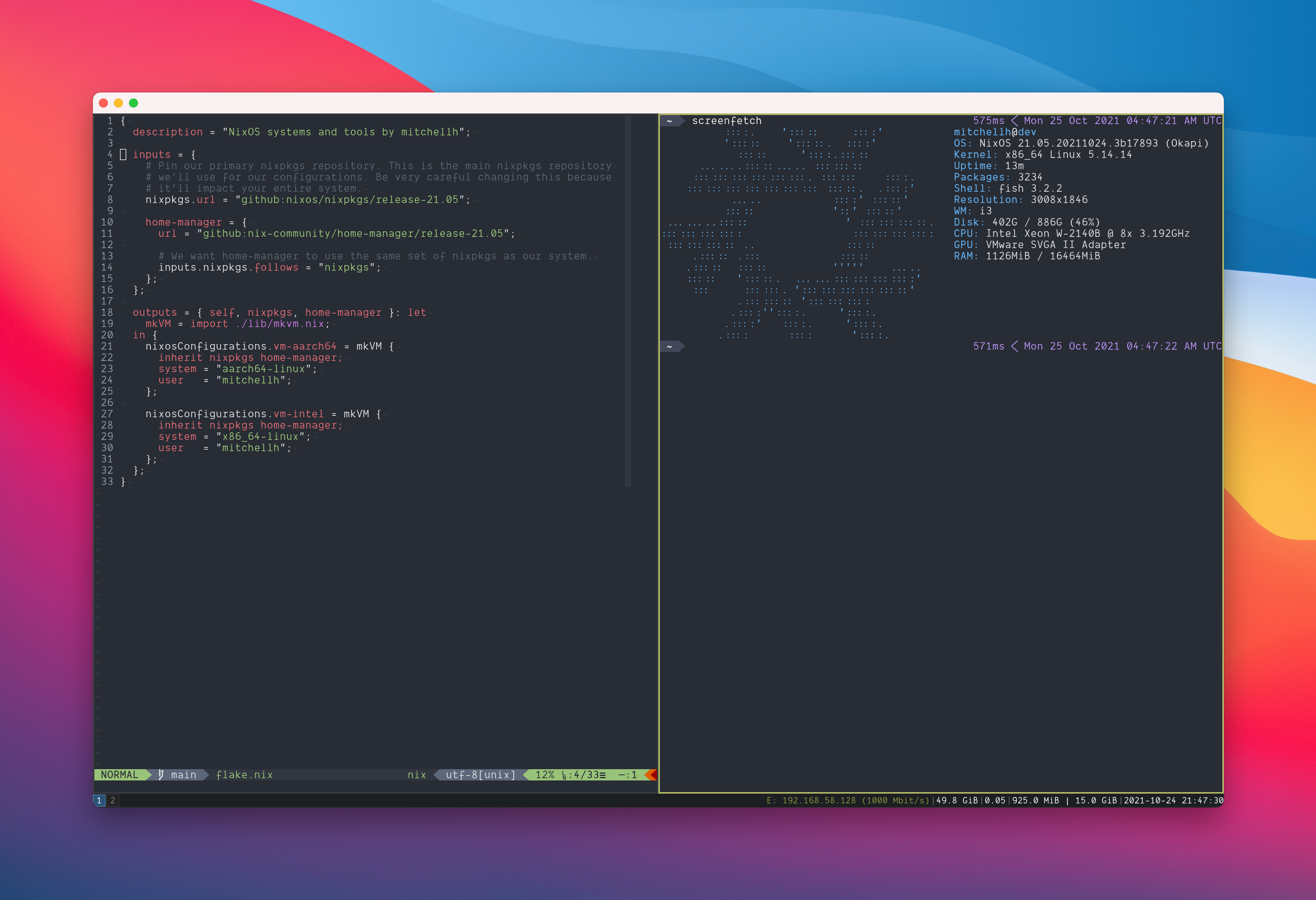
Note that I usually full screen the VM so there isn’t actually a window,
and I three-finger swipe or use other keyboard shortcuts to active that
window.
Common Questions Related To This Workflow
How does web application development work? I use the VM’s IP. Even
though it isn’t strictly static, it never changes since I rarely run
other VMs. You just have to make sure software in the VM listens
on 0.0.0.0 so that it isn’t only binding to loopback.
Does copy/paste work? Yes.
Do you use shared folders? I set up a shared folder so I can access
the home directory of my host OS user, but I very rarely use it. I primarily
only use it to access browser downloads. You can see this setup in these
Nix files.
Do you ever launch graphical applications in the VM? Sometimes, but rarely.
I’ll sometimes do OAuth flows and stuff using FireFox in the VM. Most of the
time, I use the host OS browser.
Do you have graphical performance issues? For the types of graphical
applications I run (GUIs, browsers, etc.), not really. VMware (and other
hypervisors) support 3D acceleration on macOS and I get really smooth
rendering because of it.
This can’t actually work! This only works on a powerful workstation!
I’ve been doing this since late 2020, and I’ve developed
a lot of very real software. It works for me.
I also use this VM on a MacBook Pro (to be fair, it is maxed out on specs),
and I have no issues whatsoever.
Does this work with Apple Silicon Macs? Yes, I use VMware Fusion
but my configurations also work for Parallels and UTM. Folder syncing,
clipboards, and graphics acceleration all work. I’ve been using an
Apple Silicon Mac full time since Nov 2021 with this setup.
Does this work on Windows? Yes, I’ve tested this setup with both
Hyper-V and VMware Workstation Pro and it works great in either case.
Setup (VM)
Video: https://www.youtube.com/watch?v=ubDMLoWz76U
Note: This setup guide will cover VMware Fusion because that is the
hypervisor I use day to day. The configurations in this repository also
work with UTM (see vm-aarch64-utm) and Parallels (see vm-aarch64-prl) but
I’m not using that full time so they may break from time to time. I’ve also
successfully set up this environment on Windows with VMware Workstation and
Hyper-V.
You can download the NixOS ISO from the
official NixOS download page.
There are ISOs for both x86_64 and aarch64 at the time of writing this.
Create a VMware Fusion VM with the following settings. My configurations
are made for VMware Fusion exclusively currently and you will have issues
on other virtualization solutions without minor changes.
- ISO: NixOS 23.05 or later.
- Disk: SATA 150 GB+
- CPU/Memory: I give at least half my cores and half my RAM, as much as you can.
- Graphics: Full acceleration, full resolution, maximum graphics RAM.
- Network: Shared with my Mac.
- Remove sound card, remove video camera, remove printer.
- Profile: Disable almost all keybindings
- Boot Mode: UEFI
Boot the VM, and using the graphical console, change the root password to “root”:
$ sudo su
$ passwd
# change to root
At this point, verify /dev/sda exists. This is the expected block device
where the Makefile will install the OS. If you setup your VM to use SATA,
this should exist. If /dev/nvme or /dev/vda exists instead, you didn’t
configure the disk properly. Note, these other block device types work fine,
but you’ll have to modify the bootstrap0 Makefile task to use the proper
block device paths.
Also at this point, I recommend making a snapshot in case anything goes wrong.
I usually call this snapshot “prebootstrap0”. This is entirely optional,
but it’ll make it super easy to go back and retry if things go wrong.
Run ifconfig and get the IP address of the first device. It is probably
192.168.58.XXX, but it can be anything. In a terminal with this repository
set this to the NIXADDR env var:
$ export NIXADDR=<VM ip address>
The Makefile assumes an Intel processor by default. If you are using an
ARM-based processor (M1, etc.), you must change NIXNAME so that the ARM-based
configuration is used:
$ export NIXNAME=vm-aarch64
Other Hypervisors: If you are using Parallels, use vm-aarch64-prl.
If you are using UTM, use vm-aarch64-utm. Note that the environments aren’t
exactly equivalent between hypervisors but they’re very close and they
all work.
Perform the initial bootstrap. This will install NixOS on the VM disk image
but will not setup any other configurations yet. This prepares the VM for
any NixOS customization:
$ make vm/bootstrap0
After the VM reboots, run the full bootstrap, this will finalize the
NixOS customization using this configuration:
$ make vm/bootstrap
You should have a graphical functioning dev VM.
At this point, I never use Mac terminals ever again. I clone this repository
in my VM and I use the other Make tasks such as make test, make switch, etc.
to make changes my VM.
Setup (macOS/Darwin)
THIS IS OPTIONAL AND UNRELATED TO THE VM WORK. I recommend you ignore
this unless you’re interested in using Nix to manage your Mac too.
I share some of my Nix configurations with my Mac host and use Nix
to manage some aspects of my macOS installation, too. This uses the
nix-darwin project. I don’t manage
everything with Nix, for example I don’t manage apps, some of my system
settings, Homebrew, etc. I plan to migrate some of those in time.
To utilize the Mac setup, first install Nix using some Nix installer.
There are two great installers right now:
nix-installer
by Determinate Systems and Flox. The point of both
for my configs is just to get the nix CLI with flake support installed.
Once installed, clone this repo and run make. If there are any errors,
follow the error message (some folders may need permissions changed,
some files may need to be deleted). That’s it.
WARNING: Don’t do this without reading the source. This repository
is and always has been my configurations. If you blindly run this,
your system may be changed in ways that you don’t want. Read my source!
Setup (WSL)
THIS IS OPTIONAL AND UNRELATED TO THE VM WORK. I recommend you ignore
this unless you’re interested in using Nix to manage your WSL
(Windows Subsystem for Linux) environment, too.
I use Nix to build a WSL root tarball for Windows. I then have my entire
Nix environment on Windows in WSL too, which I use to for example run
Neovim amongst other things. My general workflow is that I only modify
my WSL environment outside of WSL, rebuild my root filesystem, and
recreate the WSL distribution each time there are system changes. My system
changes are rare enough that this is not annoying at all.
To create a WSL root tarball, you must be running on a Linux machine
that is able to build x86_64 binaries (either directly or cross-compiling).
My aarch64 VMs are all properly configured to cross-compile to x86_64
so if you’re using my NixOS configurations you’re already good to go.
Run make wsl. This will take some time but will ultimately output
a tarball in ./result/tarball. Copy that to your Windows machine.
Once it is copied over, run the following steps on Windows:
$ wsl --import nixos .\nixos .\path\to\tarball.tar.gz
...

$ wsl -d nixos
...

# Optionally, make it the default
$ wsl -s nixos
After the wsl -d command, you should be dropped into the Nix environment.
Voila!
FAQ
Why do you still use niv?
I am still transitioning into a fully flaked setup. During this transition
(which is indefinite, I’m in no rush), I’m using both.